

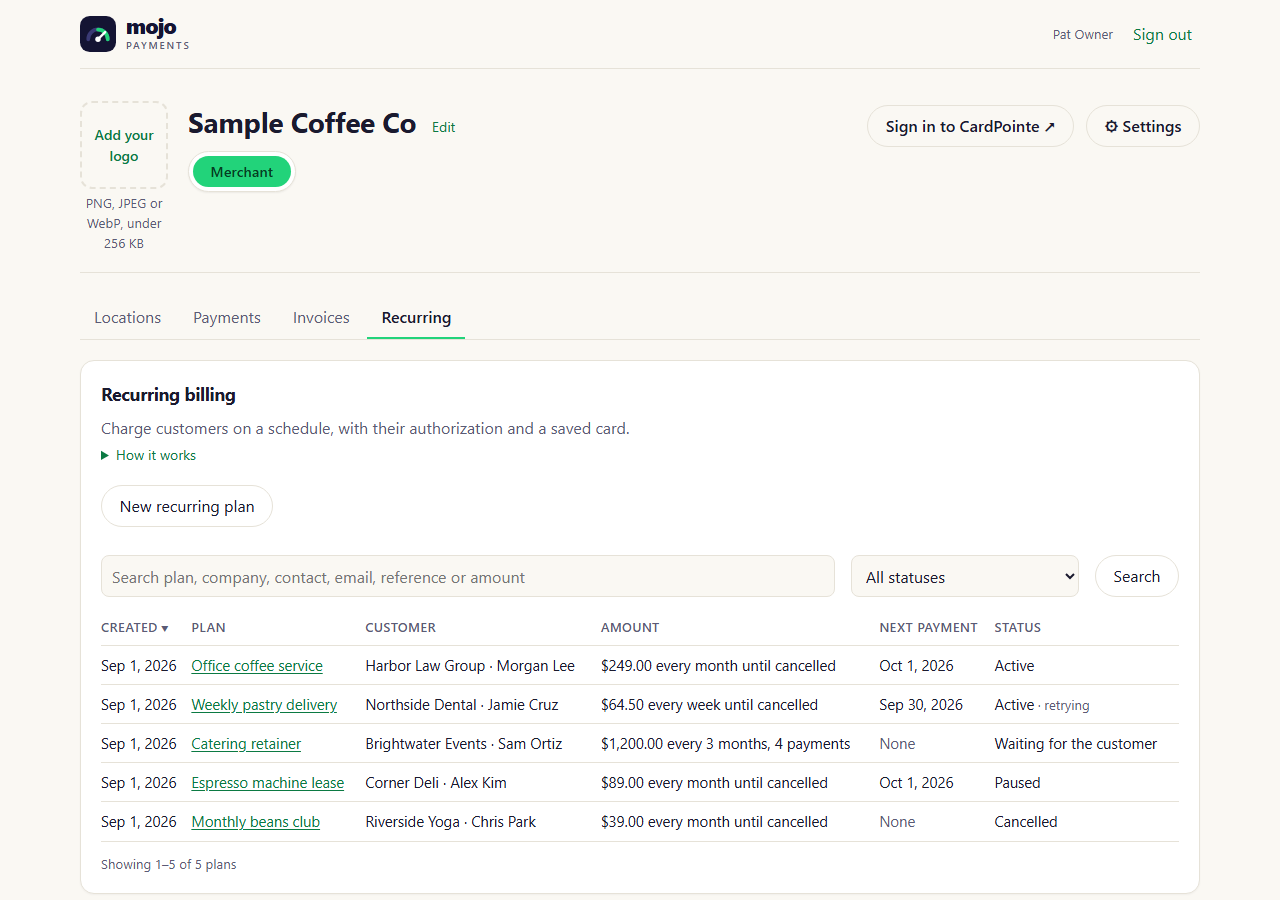
Recurring: your plans (portal as of October 2026)
Create a plan
1
Start a plan
On the Recurring tab, click New recurring plan.
2
Say what it's for
A description the customer sees (for example “Office coffee service”), the MID it’s paid to, and optionally your
own reference and a PO number.
3
Set the amount and schedule
The amount of each payment; how often (every week, every 2 weeks, every month, every 3 months or
every year); the first payment’s date; and when it ends: When cancelled, or After a number of payments.
4
Who it's for
The customer’s email (required), and their company or name. A phone number lets you send the link by text.
5
Lines (optional)
What each payment covers, line by line. Lines must add up to the amount. Business customers’ cards cost less to
accept when a payment carries its lines and PO number.
6
Send
The customer gets a link to set up their payments. Nothing is charged until they authorize it.
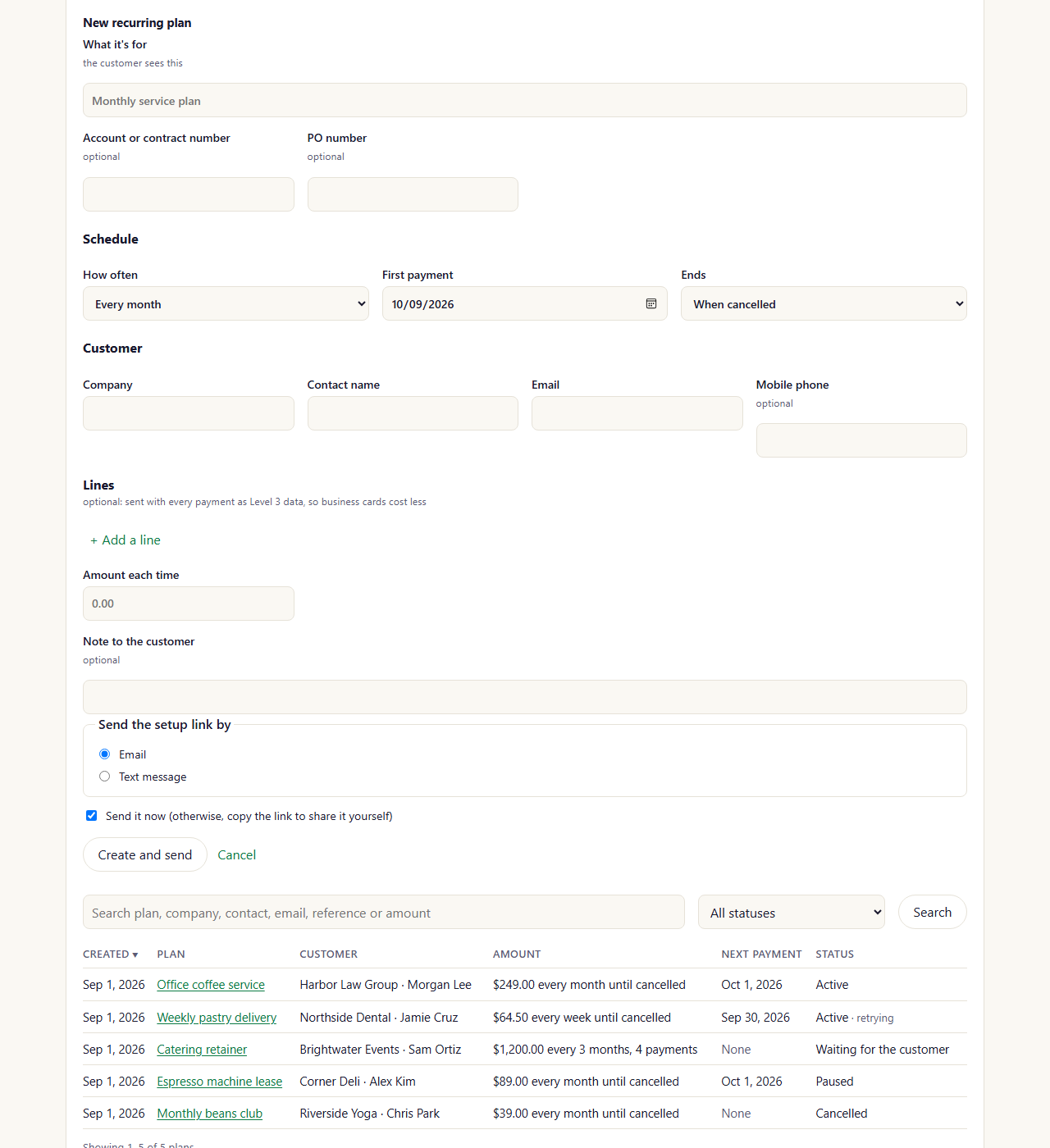
Recurring → New recurring plan (portal as of October 2026)
What your customer sees
The link opens a page in your business’s look (your name, logo and colors from Settings → Payment page). It shows the plan’s terms. The customer enters their card, ticks the authorization (it states the amount, how often and from when), and confirms.- First payment today: it’s charged right away, and the card is saved for the rest.
- First payment later: the card is checked (nothing charged), and the first payment is taken on its date.
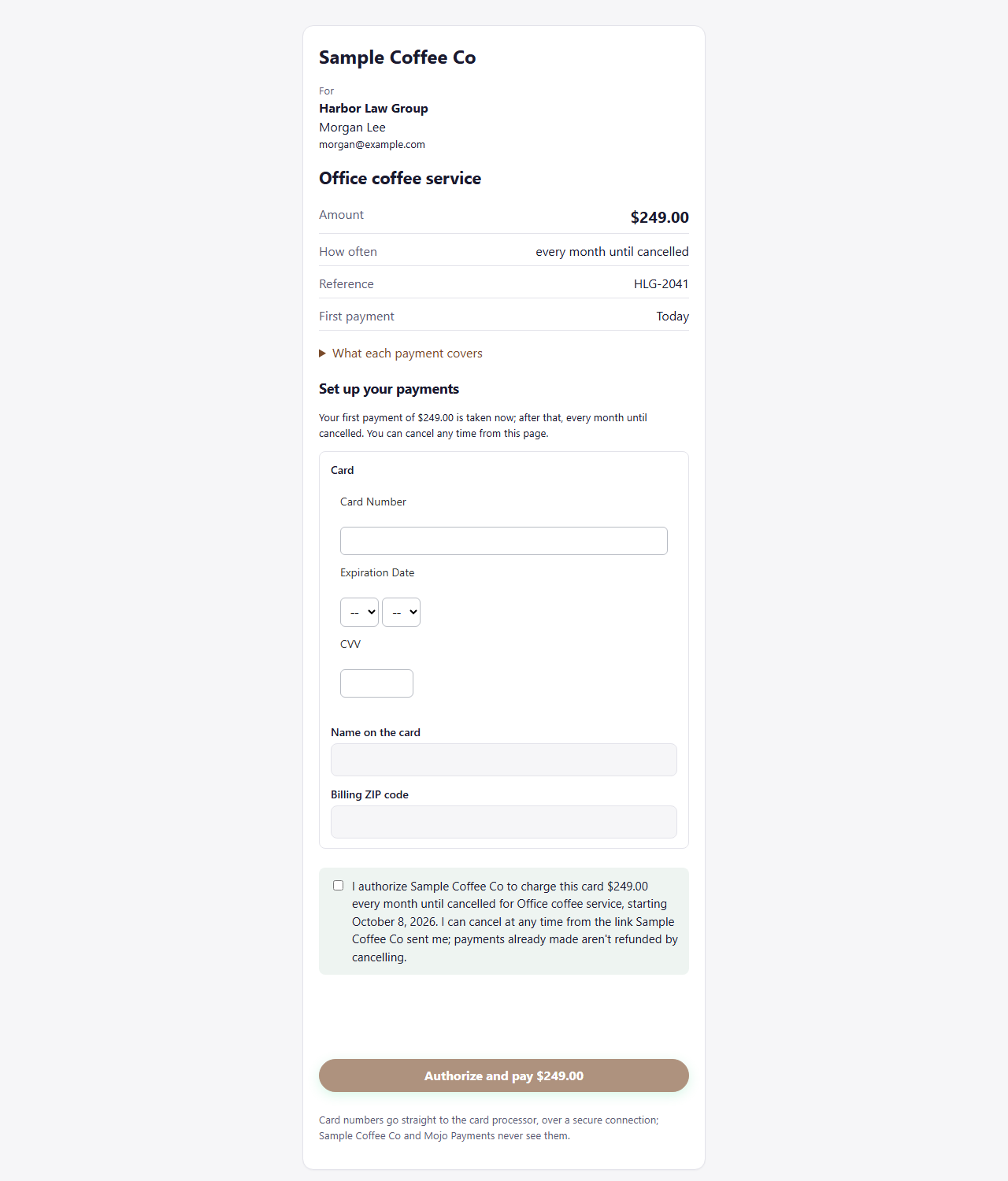
The customer's setup page (as of October 2026)
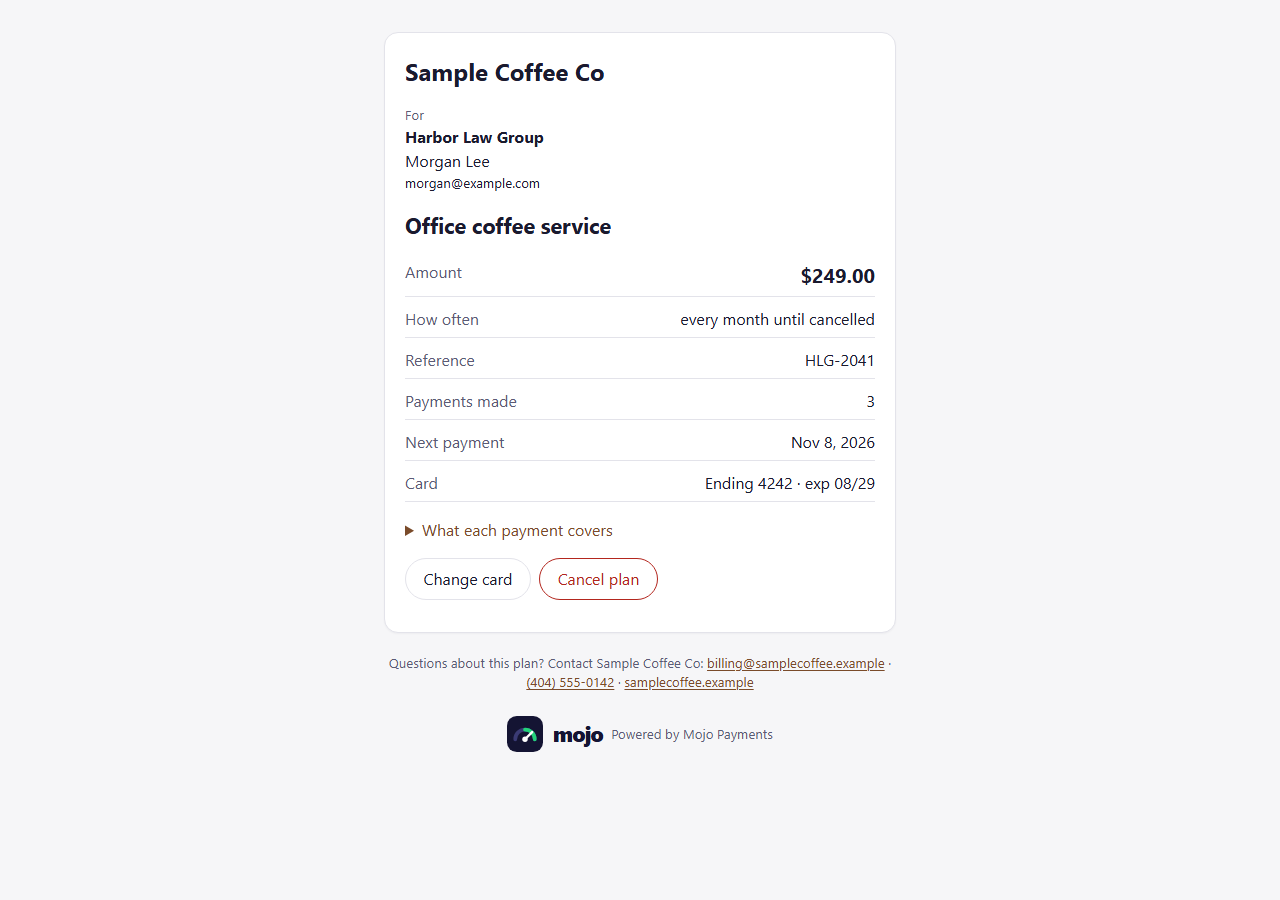
The customer's plan page (as of October 2026)
Each payment
- Each payment is charged on its date, and the customer gets a receipt by email.
- Declined: the customer is emailed, with a link to change their card, and the payment is tried again on the days you choose (below). If the last try is declined too, the plan stops (Stopped (failed payments)) and your cancellation address hears.
- When the card’s issuer gives advice, it’s followed, so you aren’t charged by the card brands for retries that
can’t succeed:
- Never try this card again (for example, the account is closed, or the cardholder stopped recurring payments): no more retries. The plan stops now, as if every try had been declined.
- Don’t send this payment again: the plan is paused with the reason. Resume it to carry on from the next payment.
- Try again after a few days: the next try waits at least that long, still before the next payment is due.
- No answer from the processor: the plan is paused so a payment can’t be taken twice. Check the payment, then resume the plan (or cancel it).
Your plans
Open a plan from the list to see its terms, the customer, the card (last four digits and expiry), and every payment with its result. From there you can: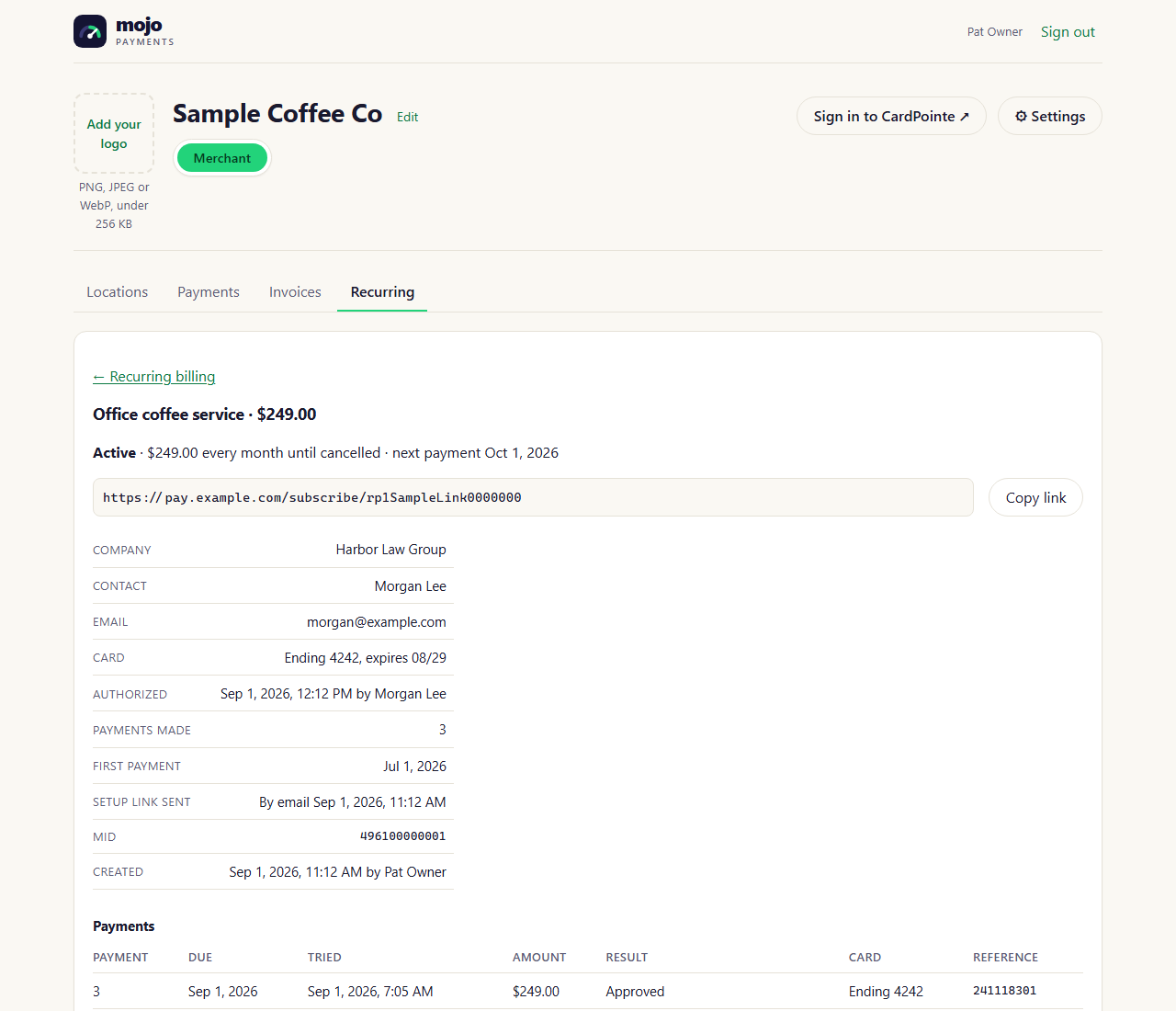
Recurring → a plan (portal as of October 2026)
Settings
Under Settings → Payment page (Owners and Admins), in Recurring billing:- Declined payments: the days after a declined payment to try again (1, 3 and 5 days by default), before the next payment is due.
- Cancellation notices: an email address told whenever a customer cancels or a plan fails. It’s used once someone clicks the confirmation link sent to it.
- Recurring emails: the wording of the setup, receipt, declined and cancelled emails, with a preview and Send a test.
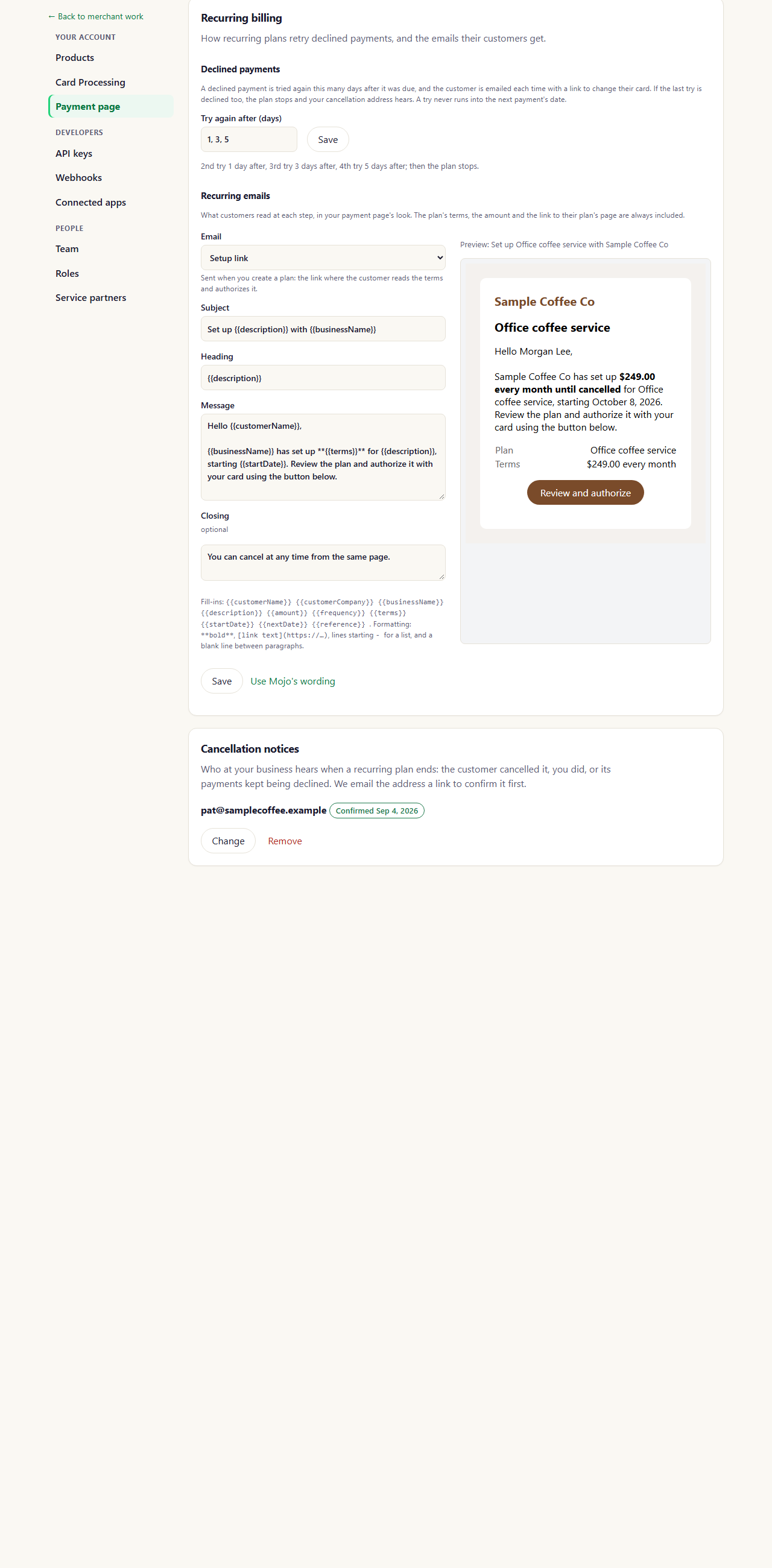
Settings → Payment page → Recurring billing (portal as of October 2026)