

- “Did Buyer Industries pay invoice 2001?”
- “Why was Tuesday’s deposit less than our card sales?”
- “Which invoices are more than 30 days overdue?”
- “Are any recurring payments being declined, and what should we do?”
- “What was our card volume last month, and on which card brands?”
- “Is everything OK with the registers at Main Street?”
- “Create an invoice for Corner Deli for $120, number 3001, due in 30 days.”
- “Send invoice 2004 again.”
- “Pause Lee’s Office coffee plan.”
Connect it
You need the address of the Mojo Payments MCP server (you’ll also find it, with a Copy button, under Settings → Connected apps):1
Add a custom connector
In your assistant, add a custom connector (also called an MCP server) with that address. In Claude, it’s under
Settings → Connectors; in other assistants, look for connectors, apps or MCP servers in their settings.
2
Sign in to Mojo Payments
The assistant opens Mojo Payments’ sign-in. Sign in as you usually do.
3
Choose your business and allow it
Choose which business it works with and check what it will be able to do. It reads by default; tick Also let it
make changes if you want it to create, send and cancel invoices, look after recurring plans, or set up webhooks.
Select Allow, and you go back to your assistant, ready to ask.
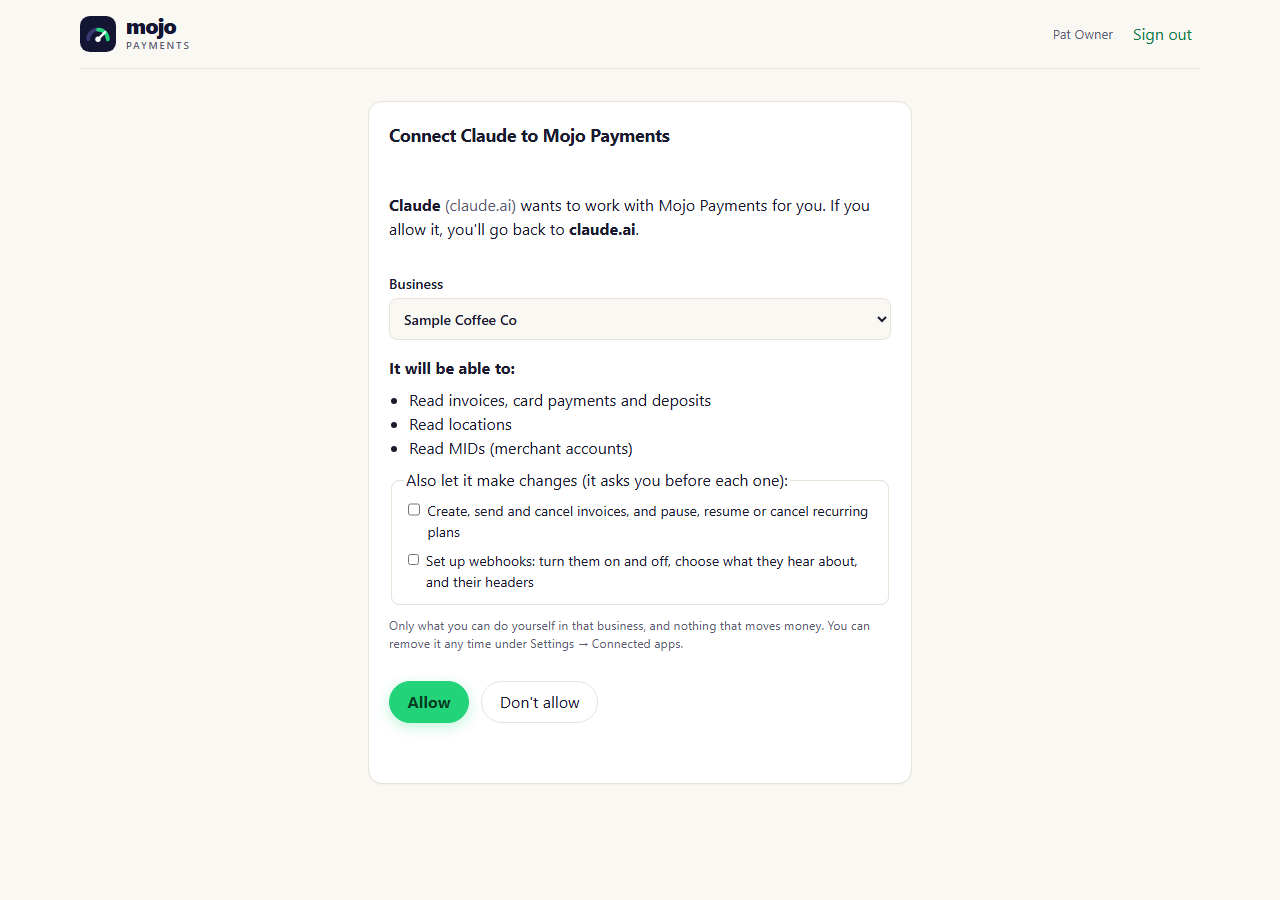
Connecting an assistant (portal as of October 2026)
What it can do
Changes are made the same way the portal makes them: the same checks, the same emails to your customers, and your
name on the record.
What customers typed (an invoice’s memo, a note) is shown to the assistant as information only, never as instructions.
See or remove connected assistants
Under Settings → Connected apps you see the assistants you connected; Owners and Admins see everyone’s. Select Remove to disconnect one: it stops working with Mojo Payments within a minute. Leaving the business, or losing the permission it relies on, ends its access too.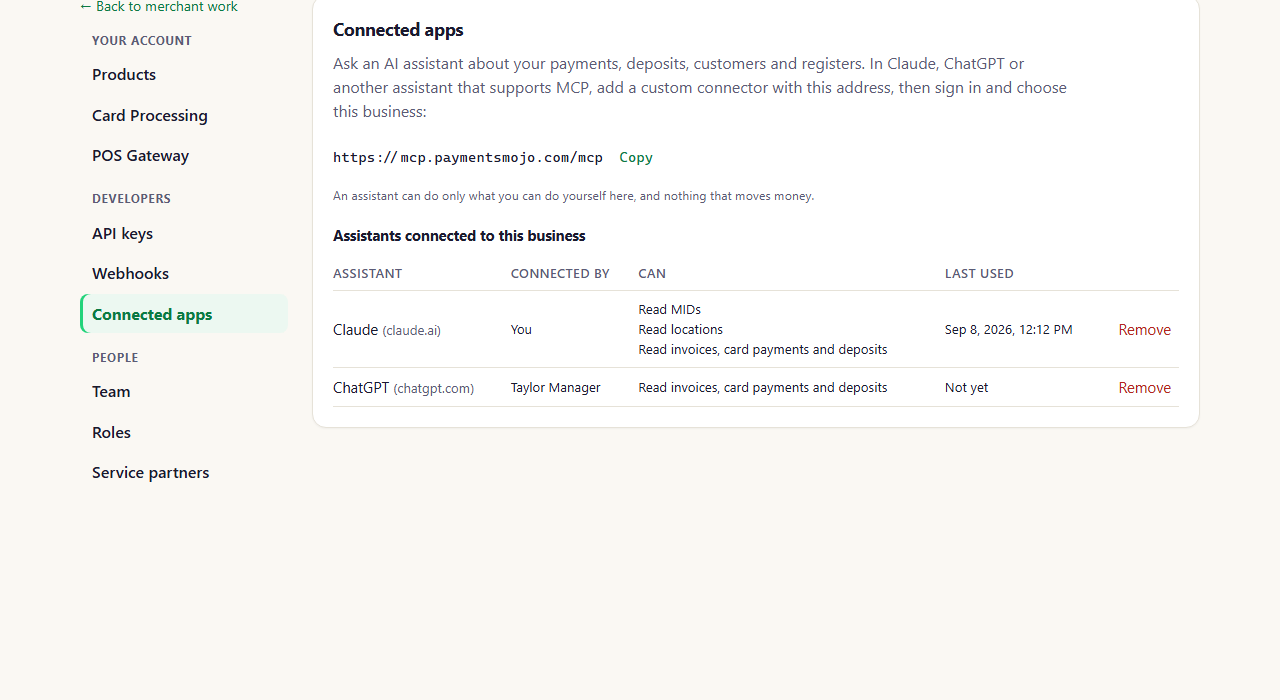
Settings → Connected apps (portal as of October 2026)