

Adding a location
On Locations, give the new location a name, choose its time zone (it starts at your business’s), and Add location. Open it afterwards to fill in the rest.A location’s details
Times and time zones
Times in the portal are shown in your business’s time zone, with the zone named (for example “5:00 PM CST”). Everyone working in your account sees the same clock: your team, Mojo Payments, your reseller partner and your service partners.- Your business’s time zone is set on your business’s profile (Edit beside its name). Until you set one, it’s the zone most of your locations use.
- A location’s own records show in the location’s time zone: a campaign’s dates, orders and check-in, and the pages your customers see (invoices, campaign pages and tickets). A campaign’s start and end are entered in its location’s time zone, which the form names.
MIDs and terminals
Each location has one Front-End MID, the one its payments are processed on, and shows whether its processing login works. Next to it are the Back-End MID and Reporting MID it is also known by. Mojo Payments adds them in Card Processing. If your business has more than one MID (say, one for the store and one for online orders), each gets its own location, named for what it’s for: “Main Street (POS)”, “Online store”.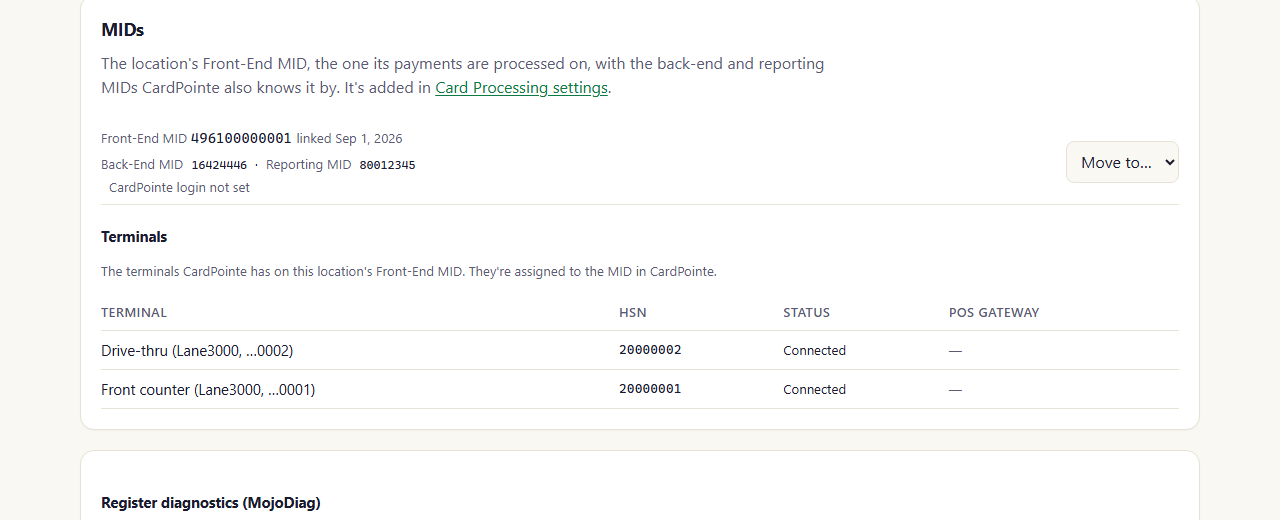
A location's MIDs and terminals (portal as of October 2026)