

The languages
English, Spanish, Chinese (Simplified), Vietnamese, Korean, Tagalog, Haitian Creole, French, Portuguese (Brazil) and Russian. You choose which of them you offer.Add a language
- Go to Settings → Sign-up page and find Languages.
- Check your Original language: the one you design in (English unless you change it). You can change it only before you add another language, because the others are translations of it.
- Under Add a language, choose one and click Add and draft. It takes up to a minute.
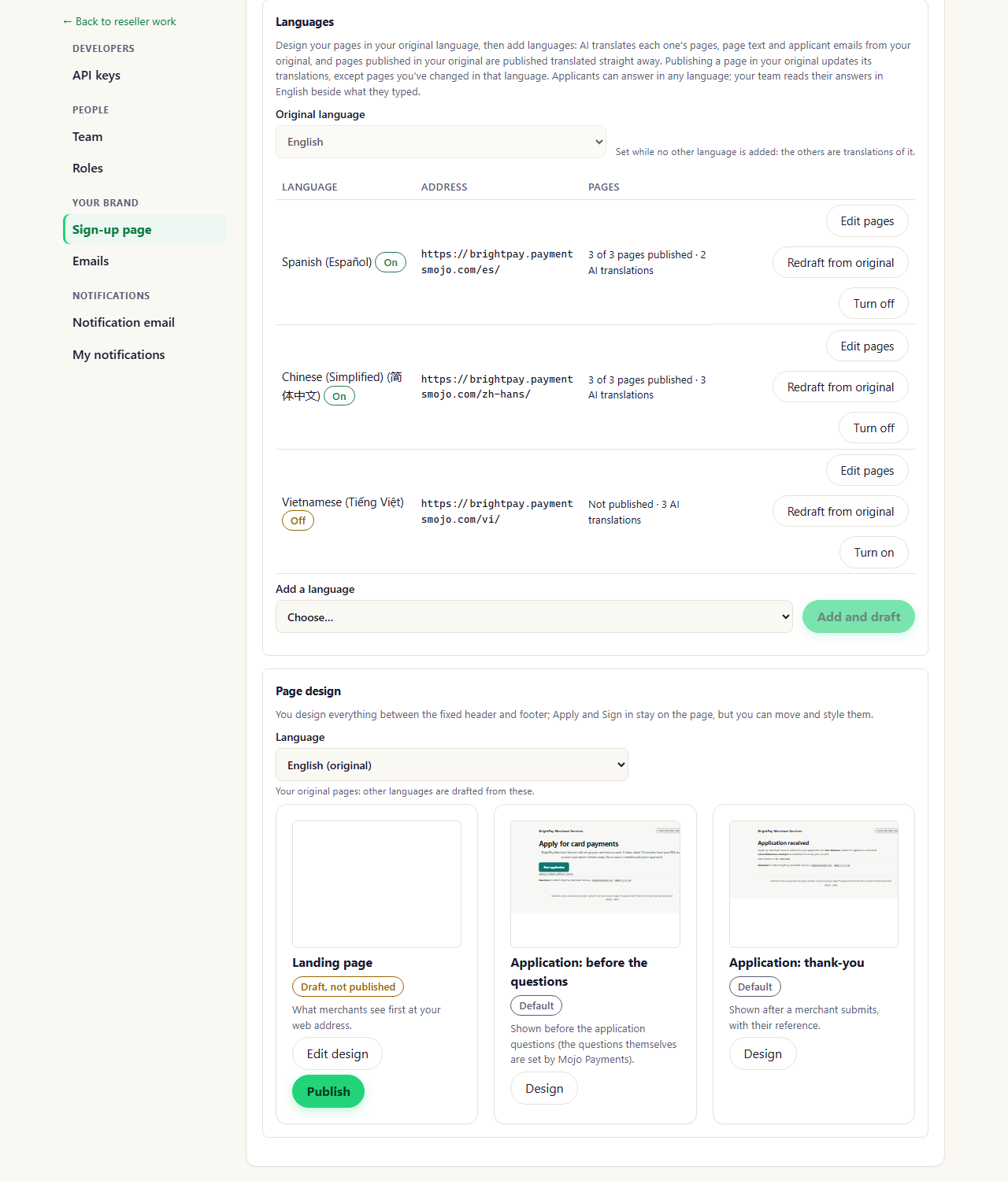
Settings → Sign-up page → Languages (portal as of October 2026)
Each language’s address
Your original language keeps your main address. Each other language has its own, which you can share directly:yourname.paymentsmojo.com/es/ for Spanish, for example. They’re listed under your main address at the top of
Settings → Sign-up page, each with whether it’s live.
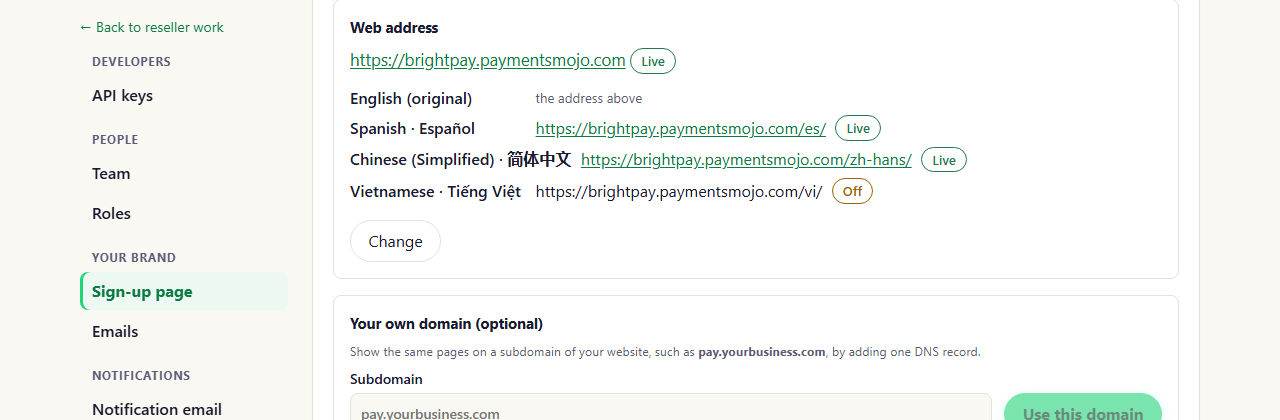
Settings → Sign-up page → Web address (portal as of October 2026)
Edit a language
Click Edit pages beside a language, or choose it in Page design’s Language list. Changes there affect only that language. Its page text (the name shown to merchants and the welcome text) is edited there too.- Pages translated by Mojo Payments are marked AI translation. AI can get things wrong: check the wording.
- Your business name stays as it is in translations, like any name. To show it in the language too, click Translate the name beside it, check the result, then Save.
- When you publish a page in your original language, its translations are updated and published too, except a page you’ve changed or published yourself in that language: that one is yours, and stays as you made it.
- Redraft from original replaces a language’s pages (published ones too), page text and email wording with a fresh translation, including any changes you made in that language.
- Turn off hides a language: its address shows your original language, and its pages are kept for when you turn it back on.
What merchants see
Visitors switch language with the flags at the top of your pages and the application, which show the languages you offer. The application’s questions, hints and error messages are in the chosen language, and the applicant’s emails are too. A merchant who comes in on your Spanish page gets the application in Spanish.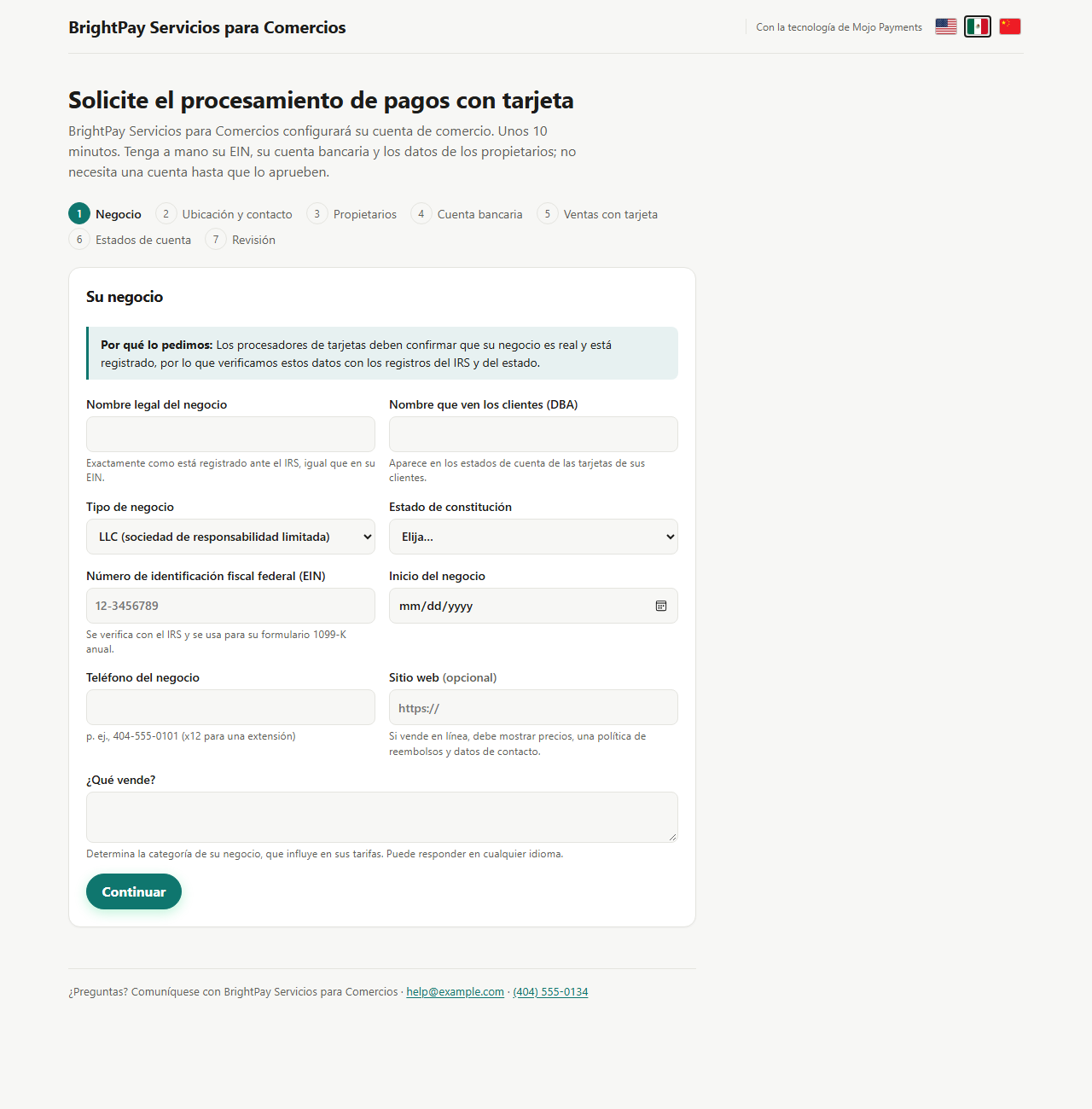
The application in Spanish, at yourname.paymentsmojo.com/es/apply
The English text of the application’s agreement is the binding version. Applicants see it translated, with the English
one click away.